
“Accessible design is good design.” - Steve Ballmer, former CEO of Microsoft
Understanding the foundational elements of accessible content development is the first step in enabling all learners to access what they need. When drafting a document or designing a course, best practice is to account for accessibility as an integral part of your workflow. Make new projects accessible by design regardless of their scope.
Everyone benefits from inclusive content. For example, closed captions added to videos benefit those with hearing disabilities. But they also help those who watch videos in private, are in loud environments, or are learning new languages. Building an online course that supports keyboard navigation is helpful to those who cannot use a mouse (i.e., those with a mobility disability who use an assistive device), but also someone who forgets a mouse and has to navigate via the keyboard. There are many other examples of how accessible content can have a far reaching positive impact.
Types of Disabilities
Designing accessible content begins with understanding the types of disabilities people experience: visual, auditory (hearing), speech, motor/dexterity, and cognitive. Some individuals have multiple disabilities. Disabilities can be permanent (e.g., a missing limb), temporary (e.g., a broken arm), and/or situational (e.g., inability to use an arm because of an activity).
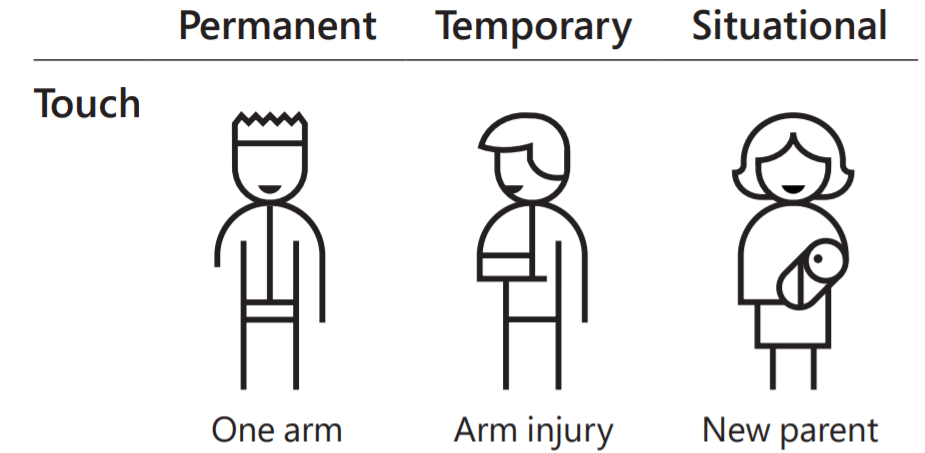
Image Source: Inclusive Design Toolkit (Microsoft)
People with visual disabilities may use assistive technologies such as screen magnifiers or screen readers. People with hearing disorders may need captions or transcripts for audio/video content. Those with mobility disabilities may use voice dictation or sip-and-puff devices. Those with cognitive disabilities benefit from structurally clear and uncluttered designs with scaffolded information.
These are just a few examples of assistive technologies and strategies you may need to consider when creating content. For a more comprehensive overview, refer to the Types of Disabilities and Associated Barriers chapter in Introduction to Web Accessibility book.
Tips for Accessible Content Development
Considering accessibility as part of the design process helps minimize any future remediation (making content accessible in post-production). It can also lower the number of individual accommodation requests.
Use the Web Content Accessibility Guidelines (WCAG) criteria and techniques to develop accessible content. While WCAG refers to web content. It is technology agnostic and can be applied to any digital content creation, from documents to online courses. Here is a Quick Reference page that specifies How to Meet WCAG's four principles of Perceivable, Operable, Understandable and Robust.
Best practice is to build accessibility into your design workflow. Here are a few techniques to consider:
- Use Headings
- Assign clear headings to the document or the page.
- Use Heading 1 (H1) once for the title of the page or the title of the document.Use H2-H4 to create additional document structure.
- Do not skip headings (i.e., move stepwise through H2 to H4 as needed).
- Assign thoughtful headings to content.
- Format Lists as Numbered (Ordered) or Bulleted (Unordered)
- Use list styles to create ordered and unordered lists. Do not create lists manually.
- Use Tables for Data
- Use tables to present data and NOT for layout purposes.
- Use columns to organize content in a specific layout.
- Present Contextual Hyperlinks
- Present links in context and consider skipping words such as “click here”, “learn more” or other non-descriptive links.
- Refer to the Understanding WCAG 2.0 page for additional information about how to meet WCAG 2.0 criteria and examples.
- Add Alternative Text (alt text) to Images
- Add descriptive alternative text for images and figures with information value.
- Consider the context of the image. What is its focus?
- Do not use “image of”, “picture of” in an alt text field, unless it is important (e.g., “Black and white historical image of …”).
- Mark decorative images as decorative.
- Audio and Video Content
- Add a descriptive text transcript file for audio content.
- Add descriptive closed captions to videos.
- Include audio descriptions in videos that demonstrate information not captured in the narration.
- Include a descriptive video transcript.
- Do not auto-start videos.
- Colour Considerations
- Use high colour contrast to present information (download and install the Colour Contrast Analyser tool or use any other colour contrast tool).
- Do not use colour alone to present or convey information.
- Do not use colour alone as an indicator (e.g., green checkmarks for correctly answered questions).
- Allow Resized Text
- People must be able to resize text to 200%.
- Do not present text as an image, unless for purely decorative purposes.
While these eight tips will get you started in accessible content creation, refer to WCAG for a comprehensive definition of all applicable criteria and related techniques.
Tags: accessibility content development digital accessibility inclusive design online learning
Share | Facebook X Email LinkedIn Permalink | Comments (0)